Artificial Intelligence website template Design | HTML, CSS, Java-Scripts website template for free
145 Downloads
An AiTech template website offers a collection of pre-designed templates and tools tailored for various artificial intelligence (AI) applications, catering to businesses, developers, and individuals looking to implement AI solutions. Here’s a description highlighting its key features: This website AiTech provides a wide range of templates covering different AI applications such as natural language processing (NLP), computer vision, machine learning models, chatbots, recommendation systems, and more.
Users can customize the templates to suit their specific needs by adjusting parameters, integrating with their existing systems or data sources, and modifying the user interface to match their branding or design preferences. The templates come with clear documentation and integration guides, making it straightforward for users to integrate them into their projects, whether they’re building websites, mobile apps, or enterprise solutions.
The templates are designed to be scalable and optimized for performance, ensuring they can handle large volumes of data and deliver fast responses, essential for real-time AI applications. The website offers pre-trained machine learning models for various tasks such as image classification, sentiment analysis, object detection, and recommendation engines, empowering users to leverage AI capabilities without needing to train models from scratch.
Users have access to APIs (Application Programming Interfaces) for seamless integration of AI functionalities into their applications, allowing them to leverage AI-powered features without extensive coding or technical expertise. The website fosters a supportive community where users can share experiences, ask questions, and collaborate on AI projects. Additionally, users can access documentation, tutorials, and customer support resources to troubleshoot issues and optimize their implementations.
The templates adhere to industry best practices for security and compliance, ensuring that users’ data and privacy are protected when implementing AI solutions. The website offers flexible pricing models, including free trials, pay-as-you-go options, and subscription plans, allowing users to choose the pricing model that best fits their budget and usage requirements.
The templates are regularly updated to incorporate the latest advancements in AI technology, bug fixes, and performance enhancements, ensuring users have access to cutting-edge AI solutions. Overall, an AiTech template website serves as a valuable resource for businesses and developers seeking to harness the power of AI to enhance their products and services, streamline processes, and drive innovation.
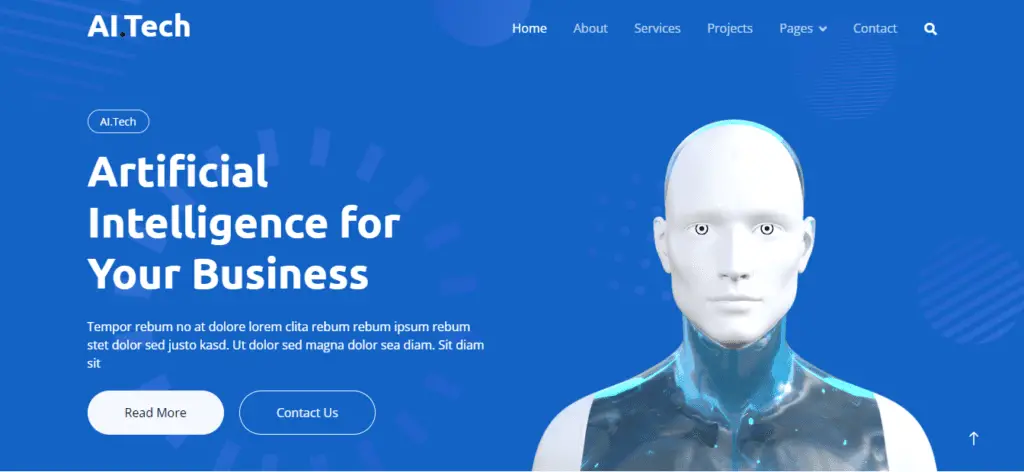
Features of our Free Template
- Modular Design
- Ready-to-Use Components
- Integration with AI Libraries/Frameworks
- API Integration
- Scalability and Performance Optimization
- Deployment Options
- Data Management and Preprocessing
- Model Management and Versioning
- Documentation and Support
- Security and Compliance
- Monitoring and Analytics
- Community and Collaboration
Local Setup Guide
Follow these simple steps to download and run this project on your computer. This guide is beginner-friendly and perfect for students who are learning web development and working on college projects.
Step 1: Download the Project from GitHub
First, open the GitHub repository link of the project.
Click on the Code button and then select Download ZIP to download the project files to your computer.
You can also clone the repository using Git:
git clone https://github.com/rjksharma/project-name.git
Step 2: Extract the ZIP File
If you downloaded the ZIP file, extract it using any file extractor software like:
• WinRAR
• 7-Zip
• Windows Extract Tool
After extracting, open the project folder.
Step 3: Open the Project in VS Code
Download and install Visual Studio Code if you do not already have it installed.
Open VS Code and click on:
File → Open Folder
Select the extracted project folder.
Step 4: Install Live Server Extension
To run the project smoothly in your browser, install the Live Server extension in VS Code.
How to Install:
1. Open VS Code
2. Go to Extensions
3. Search for Live Server
4. Click Install
Step 5: Run the Project
Inside the project folder, locate the index.html file.
Right-click on index.html and select:
Open with Live Server
Your project will automatically open in the browser.
Step 6: Customize the Website
You can now edit:
• Text content
• Images
• Colors
• Sections
• Buttons
• Layout
All files are beginner-friendly and easy to customize for personal projects, portfolio websites, and college submissions
Requirements
Before running the project, make sure you have:
• A modern web browser (Chrome, Edge, Firefox)
• Visual Studio Code
• Internet connection (optional for fonts/icons)
Troubleshooting
If the project is not opening properly:
• Make sure all files are extracted correctly
• Check that index.html exists in the root folder
• Try reopening the project in VS Code
• Ensure Live Server is installed properly
Final Note
This free project source code is shared for educational and learning purposes. Students and beginner developers can use it to improve their frontend development skills and understand real-world website structure and design.