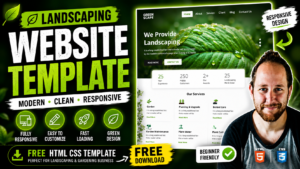
Green Host Digital Marketing Website Source Code Digital Website Template Design
126 Downloads
A Green hosting website template typically refers to a pre-designed layout or framework for creating a website specifically tailored for hosting service providers. This website often includes a modern aesthetic, with clear navigation. The template is likely to have a clean and professional design, reflecting the reliability and trustworthiness associated with hosting services.
Here’s a breakdown of what you might expect from a hosting website template: With the increasing use of mobile devices, a good hosting website template will be responsive, meaning it adjusts seamlessly to different screen sizes and devices, ensuring a consistent user experience across desktops, tablets, and smartphones.
Easy access to customer support and contact information in this template of E-commerce and business and it is a crucial for hosting providers. The template will likely include sections to highlight the features and services offered by the hosting provider. This might include details about different hosting plans, server specifications, uptime guarantees, security features, and support options.
Testimonials and reviews from satisfied customers can build trust and credibility. A hosting website template may include sections or widgets to display these testimonials prominently. Hosting plans often come with various technical specifications and pricing options. A hosting website template might include a blog or knowledge center section to showcase such content and demonstrate expertise in the field.
The template will likely include sections to highlight the features and services offered by the hosting provider. The template is likely to include sections for contact details, support channels (such as live chat, email, or phone), and possibly a knowledge base or FAQ section to address common queries, so that your user experience be easy. Depending on the sophistication of the template, it might offer integration with popular hosting management tools or platforms, allowing customers to manage their hosting accounts directly from the website.
To reassure potential customers about the security of their websites and data, the template may include trust elements such as SSL certificates, security badges, or certifications that indicate compliance with industry standards. Hosting providers often publish articles, tutorials, or guides related to web hosting, website management, and online business. The template might include tables or comparison charts to showcase different plans, their features, and pricing details in a clear and concise manner.
Features of our Free Template
- Hosting Plans and Packages
- Security Features
- Uptime Guarantee
- Scalability
- Domain Registration
- Control Panel
- Blog or Knowledge Center
- Monitoring and Analytics
- One-Click Installs
- Performance Optimization
- Resource Usage Alerts
- Money-Back Guarantee
- Customer Support
- Support and Contact Information
Local Setup Guide
Follow these simple steps to download and run this project on your computer. This guide is beginner-friendly and perfect for students who are learning web development and working on college projects.
Step 1: Download the Project from GitHub
First, open the GitHub repository link of the project.
Click on the Code button and then select Download ZIP to download the project files to your computer.
You can also clone the repository using Git:
git clone https://github.com/rjksharma/project-name.git
Step 2: Extract the ZIP File
If you downloaded the ZIP file, extract it using any file extractor software like:
• WinRAR
• 7-Zip
• Windows Extract Tool
After extracting, open the project folder.
Step 3: Open the Project in VS Code
Download and install Visual Studio Code if you do not already have it installed.
Open VS Code and click on:
File → Open Folder
Select the extracted project folder.
Step 4: Install Live Server Extension
To run the project smoothly in your browser, install the Live Server extension in VS Code.
How to Install:
1. Open VS Code
2. Go to Extensions
3. Search for Live Server
4. Click Install
Step 5: Run the Project
Inside the project folder, locate the index.html file.
Right-click on index.html and select:
Open with Live Server
Your project will automatically open in the browser.
Step 6: Customize the Website
You can now edit:
• Text content
• Images
• Colors
• Sections
• Buttons
• Layout
All files are beginner-friendly and easy to customize for personal projects, portfolio websites, and college submissions
Requirements
Before running the project, make sure you have:
• A modern web browser (Chrome, Edge, Firefox)
• Visual Studio Code
• Internet connection (optional for fonts/icons)
Troubleshooting
If the project is not opening properly:
• Make sure all files are extracted correctly
• Check that index.html exists in the root folder
• Try reopening the project in VS Code
• Ensure Live Server is installed properly
Final Note
This free project source code is shared for educational and learning purposes. Students and beginner developers can use it to improve their frontend development skills and understand real-world website structure and design.